How to install
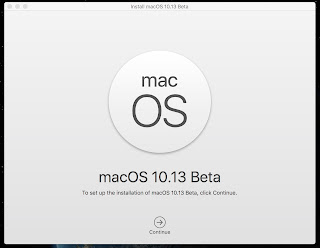
MacOS High Sierra on Mac. Today you can do it now.
Updated new cool method:
1) Download developer profile (free) LINK
2) Open terminal
sudo /System/Library/PrivateFrameworks/Seeding.framework/Versions/A/Resources/seedutil enroll DeveloperSeed
3) Paste command and give password
4) macappstores://itunes.apple.com/app/id1209167288 open this link in safari
5) Click Download
Old complete method:
1. Download MacOS High Sierra via torrent or dirrent links, open the .dmg
2. Right-click the .app – “Show Package Contents”
3. Open (mount) InstallESD.dmg, located along the path of “Install …app / Contents / SharedSupport /”
4. From the contents of the OS X Install ESD open (mount) BaseSystem.dmg
(default BaseSystem.dmg Basesystem.chunklist and hidden. Use the
utility “ShowAllFiles”).
5. Run Disk Utility and expand BaseSystem.dmg on the flash drive formatted GUID (the “Options”) and Mac OS coffee (HFS +)
6. Copy the folder OS X Install ESD / Packages folder on the flash drive
in the / System / Installation / replacing the file alias Packages.
6. Copy to the root of the stick and BaseSystem.dmg Basesystem.chunklist of Install ESD
If you do not – get an error Undefined error: 0 at the very beginning of the installation!
7. Backup
8. Reboot while holding down Alt. Choosing our stick. If necessary, after Disk Utility to erase partitions. We put the system.
9. Now you can install macOS Hign Sierra on your Macs.
We strongly recommend that you make a backup copy to an external drive or using Time Machine before installing last version macOS.


0 Comments
Share your thoughts with other AppleBlog readers.