style=”display:block; text-align:center;”
data-ad-layout=”in-article”
data-ad-format=”fluid”
data-ad-client=”ca-pub-2387588721502781″
data-ad-slot=”5436020822″>
Don’t forget READ HERE!!!
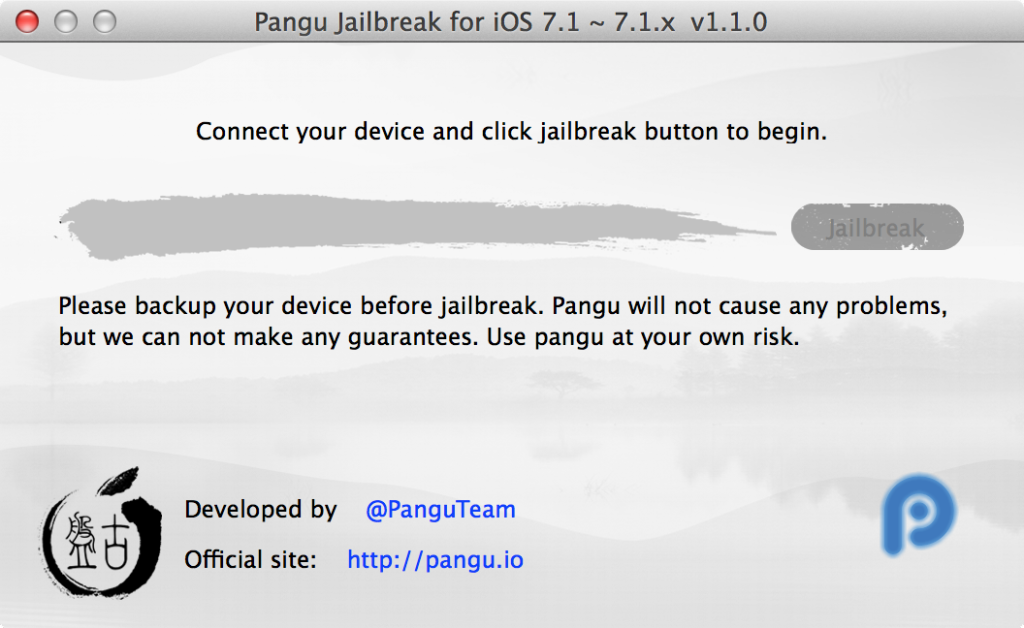
Step 1: Download Pangu Jailbreak Utility. [LINK] (Windows & Mac)
Step 2: Connect iPhone, iPad, iPod Touch running on iOS 7.1.1 in to your computer’s USB port
Step 3: Run Pangu file on Windows PC.
Step 4: Click the “Start Jailbreak” button. (checkbox must be unchecked)
Step 5: Go to Settings > General > Date & Time > disable the Set Automatically toggle.
Step 6: Enable date: June 2, 2014.
Step 7: Jailbreak Utility will start. Wait. You can see Pangu app icon on the Home screen.
Step 8: Tap Pangu icon on Home Screen.
Step 9: Wait 10-15 min.
Step 9: Done, you should see a “enjoy your new jailbreak message”.
Step 10: You can see Cydia on your iOS 7.1.1 device.
Step 11: Pangu should automatically set your date setting in Settings > General > Date & Time back to Set Automatically.
DOn’t forget – it’s not official jailbreak utility from Evad3rs. It’s jailbreak utility from new jailbreak community from China.


0 Comments
Share your thoughts with other AppleBlog readers.