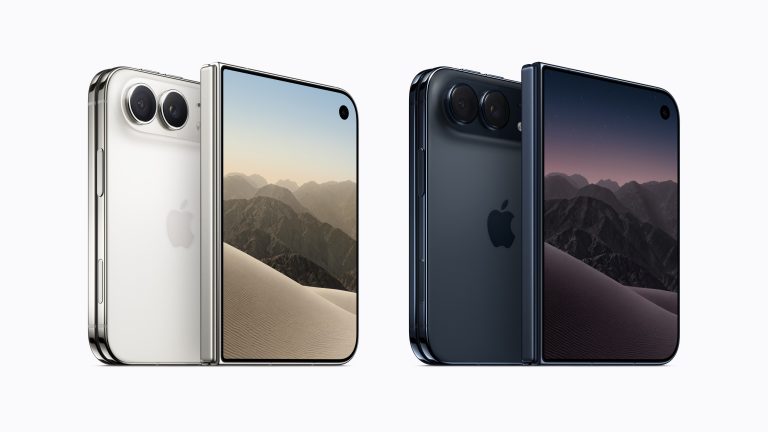
Step 1: Unbox and Inspect Your Device
First things first, carefully unbox your iPhone and check the contents. You should find the iPhone itself, a USB-C to Lightning cable, and documentation. Note that recent iPhone models no longer include a power adapter or EarPods. Ensure that your device has no visible defects or issues.
Step 2: Charge Your iPhone
Before you dive into setting up your iPhone, it’s a good idea to start with a full battery. Plug your iPhone into a power source using the included USB-C to Lightning cable. While it’s charging, you can continue with the setup process.
Step 3: Power On and Start the Setup Assistant
To turn on your iPhone, press and hold the side button until the Apple logo appears. The Setup Assistant will greet you with “Hello” in different languages. Follow the on-screen instructions to begin setting up your device. This includes choosing your language, region, and connecting to Wi-Fi.
Step 4: Set Up Face ID or Touch ID
Security is key with any device, and your iPhone provides top-notch options. Set up Face ID or Touch ID to keep your device secure. This will also be used for Apple Pay and quick authentication across various apps.
Step 5: Transfer Data from Your Old Device
Apple offers seamless ways to transfer data from your old iPhone or Android device. You can use iCloud backups, direct device-to-device transfer, or even import content from a non-Apple phone. Choose the method that best suits your needs and follow the prompts.
Step 6: Sign In with Your Apple ID
Your Apple ID is central to everything you do with Apple services — from downloading apps to accessing iCloud. Sign in with your existing Apple ID or create a new one if this is your first Apple device.
Step 7: Turn On “Find My iPhone”
Turning on ‘Find My iPhone’ is the first step to ensure you can track your device if it’s lost. Here’s a simple guide to enable this feature:
- Open the ‘Settings‘ app on your iPhone.
- Tap on your Apple ID at the top, then select ‘iCloud‘.
- Scroll down and tap on ‘Find My iPhone‘.
- Toggle on ‘Find My iPhone’ and ‘Send Last Location‘.
Remember, for ‘Find My iPhone’ to work, your device must be connected to the internet. Enabling ‘Send Last Location’ will automatically send the device’s location to Apple when the battery is critically low, offering a last-ditch effort to locate it.
Step 8: Customize Settings
Dive into the settings app to customize your iPhone according to your preferences. This includes setting up Siri, enabling location services, adjusting your display settings, and more. Personalize your iPhone to fit your lifestyle and usage.
Step 9: Install Essential Apps
Now that your iPhone is set up, visit the App Store to download the apps you need. Whether it’s social media, productivity tools, or games, you can find apps to enhance your iPhone experience. Don’t forget to download updates for pre-installed apps.
Apple Tips Conclusion
Setting up your new iPhone is an exciting process that shapes your experience with the device. By following these steps, you ensure your iPhone is secure, personalized, and ready to use. Enjoy exploring the capabilities and features of your new iPhone!