Skip to content
Apple Blog
How To

How To Install Mac OS Mojave dynamic walls on PC Windows

Published by AppleBloggerUX in How To

How To

How To Install Mac OS Mojave Dynamic Walls on PC Windows. One of the innovations in macOS Mojave is a dynamic wallpaper with photos of the Mojave Desert,

How To 2018
Key details

How To Install Mac OS Mojave Dynamic Walls on PC Windows. One of the innovations in macOS Mojave is a dynamic wallpaper with photos

Apple Blog 2018

About this post

How To Install Mac OS Mojave dynamic walls on PC Windows. How To Install Mac OS Mojave Dynamic Walls on PC Windows. One of

Apple Blog 2018

How To Install Mac OS Mojave dynamic walls on PC Windows

“Windows 10 at the native level supports a cyclic change of wallpaper, but without taking into account the time of day. The WinDynamicDesktop application works differently. It contains 16 photos”

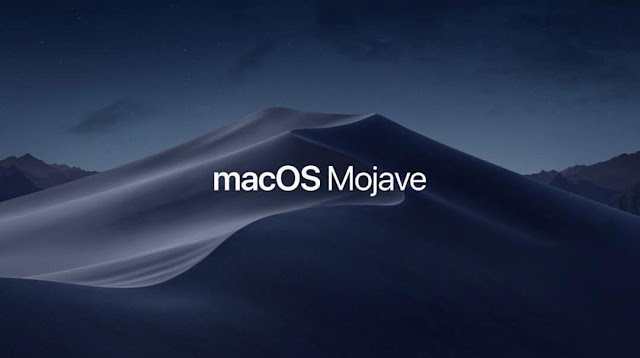
How To Install Mac OS Mojave Dynamic Walls on PC Windows. One of the innovations in macOS Mojave is a dynamic wallpaper with photos of the Mojave Desert, which gradually change depending on the current time. User Reddit with the nickname t1m0thyj has created an application that allows you to install such wallpapers on any computer running Windows.

Download the program from the GitHub website and run it. If Windows Defender reports a ban on the installation, do not be scared, it’s an open source program and it does not contain any viruses. In the warning window, click “Read more” and force the installation to continue.

When you first start, you need to enter the geographical coordinates of the place where you are. They can be found in many ways, for example, using Google Maps: open the maps, find your home, copy numbers from the address bar and paste them into the dialog box of the program.

After that, a picture of the Mojave Desert appears on the desktop, and after a while it will be replaced by another one.You can also make sure that these wallpapers are installed each time the computer restarts – to do this, select the appropriate option after right-clicking on the program icon in the system tray. There you can also change the information about your location if necessary.

Share this post

Send this article to other Apple fans.

Previous Post

Create a bootable USB for Mac OS Mojave

Next Post

iOS 12 Jailbreak Untethered via Pandora Jailbreak iOS 12 Tool.

Discussion

0 Comments

Share your thoughts with other AppleBlog readers.

Leave a comment

Your email address will not be published. Required fields are marked with *.