Skip to content
Apple Blog
How To

How To Turn Off iCloud Automatic Backup

Published by AppleBloggerUX in How To

How To

If you make iOS backup via iCloud, disable the iCloud automatic backup after performing the backup. This will stop any unnecessary backup made after your upgrade. This is

How To 2019

Key details

If you make iOS backup via iCloud, disable the iCloud automatic backup after performing the backup. This will stop any unnecessary backup made after

Apple Blog 2019

About this post

How To Turn Off iCloud Automatic Backup. If you make iOS backup via iCloud, disable the iCloud automatic backup after performing the backup. This

Apple Blog 2019

How To Turn Off iCloud Automatic Backup

“If you make iOS backup via iCloud, disable the iCloud automatic backup after performing the backup. This will stop any unnecessary backup made after your upgrade. This is an important”

This guide tells you everything you need to know about installing new versions of iOS, updating them, downgrading and restoring data.

How To Turn Off iCloud Automatic Backup:

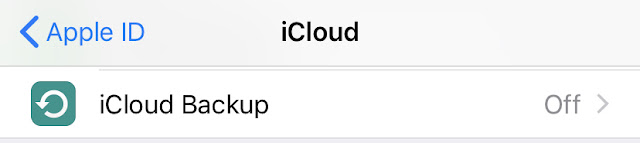
Step 1: “Settings” → “iCloud”

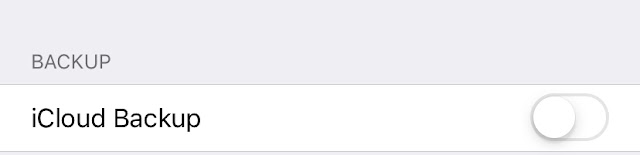
Step 2: Click “Backup”

Step 3: You will find the
switch button. Turn it off and confirm.

Step 4: Done.

Reinstalling a system or buying a new computer for many iPhone, iPad and iPod touch owners results in the loss of backups of devices made by iTunes.

Not everyone knows that in this case, all the necessary information can be recovered from the cloud copy, and it can be parsed as well as the iTunes backup into separate files needed in a particular situation.

In this manual, we will consider the possibility of saving and post-processing a backup of a mobile device running iOS from iCloud.

The data stored in the iCloud backup can be useful in a variety of situations. They will be especially useful if you do not have access to your computer on which you backed up your iPhone, iPad or iPod touch in iTunes or deleted these copies along with the installation of fresh Windows.

Share this post

Send this article to other Apple fans.

Previous Post

The Upcoming Updates for Mac Products

Next Post

How to use iOS 13 Dark Theme on iPad Pro [VIDEO]

Discussion

0 Comments

Share your thoughts with other AppleBlog readers.

Leave a comment

Your email address will not be published. Required fields are marked with *.