You can easily request the deletion of these types of messages in the Mail app on your iPhone, iPad or Mac, with just a couple of clicks.
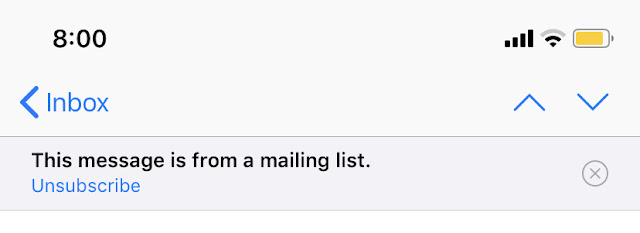
The mail app easily recognizes emails that are part of a mailing list, usually of some business. These types of emails are marked with a message at the top of the headline: “this is from the mailing list” and next to it is a link to unsubscribe.
If you choose to unsubscribe, the Mail app itself will send that company an email asking them to remove your email address from the mailing list.
If you do not know how to unsubscribe from the mailing list in iOS, we will tell you the sequence of actions.
How to unsubscribe from mailing (spam) in Mail on iPhone and iPad:
Step 1: Open the Mail app and the email you want to unsubscribe from. When it is open, at the top you can see the inscription “This message is from mailing list”
Step 2: Tap on “Unsubscribe”
Step 3: Confirm this action by clicking the “Unsubscribe” button again
Step 4: Done.
The opt-Out option in the mail app is one of The most convenient features. If you don’t want to search for, download, install and configure a third-party app that allows you to unsubscribe from a lot of annoying emails with ads in one fell swoop, this feature is ideal for such one-time situations.





0 Comments
Share your thoughts with other AppleBlog readers.