Tested on iPhone Duo
Classic Apple Design
Rediscover the beautiful colors, realistic textures, and iconic details of the original iOS 6 Home Screen.
One Simple Installation
Download a single configuration profile. No jailbreak and no need to create individual shortcuts.
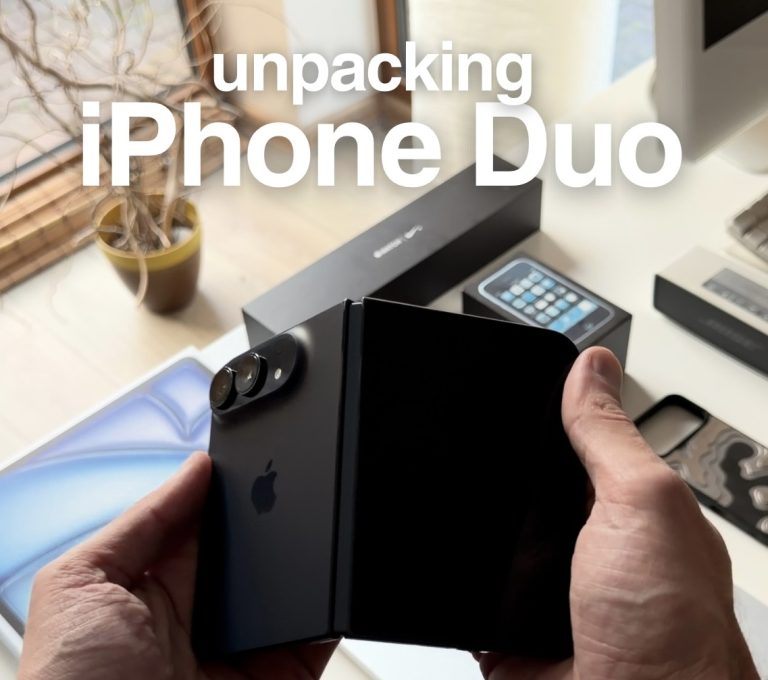
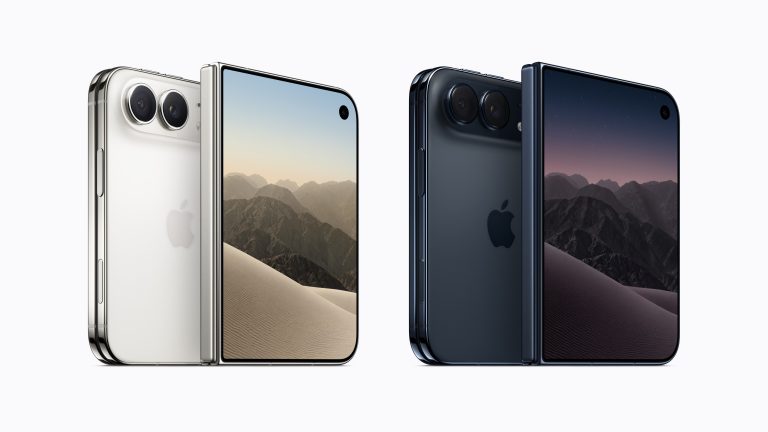
I bought Apple’s newest iPhone, and one of the things I wanted to do was make it look like an iPhone from 2012.
Yes, there is a certain irony in that.
Here we are in November 2026, with the iPhone Duo, iOS 27, modern displays, advanced processors, and a completely new way of interacting with an iPhone. And yet, I still find myself drawn to the application icons Apple designed fourteen years ago.
After spending some time with my new iPhone Duo, I decided to install the classic iOS 6 icon pack that I previously shared on AppleBlog.
I downloaded the original configuration profile, installed it on my own device, and started customizing the Home Screen.
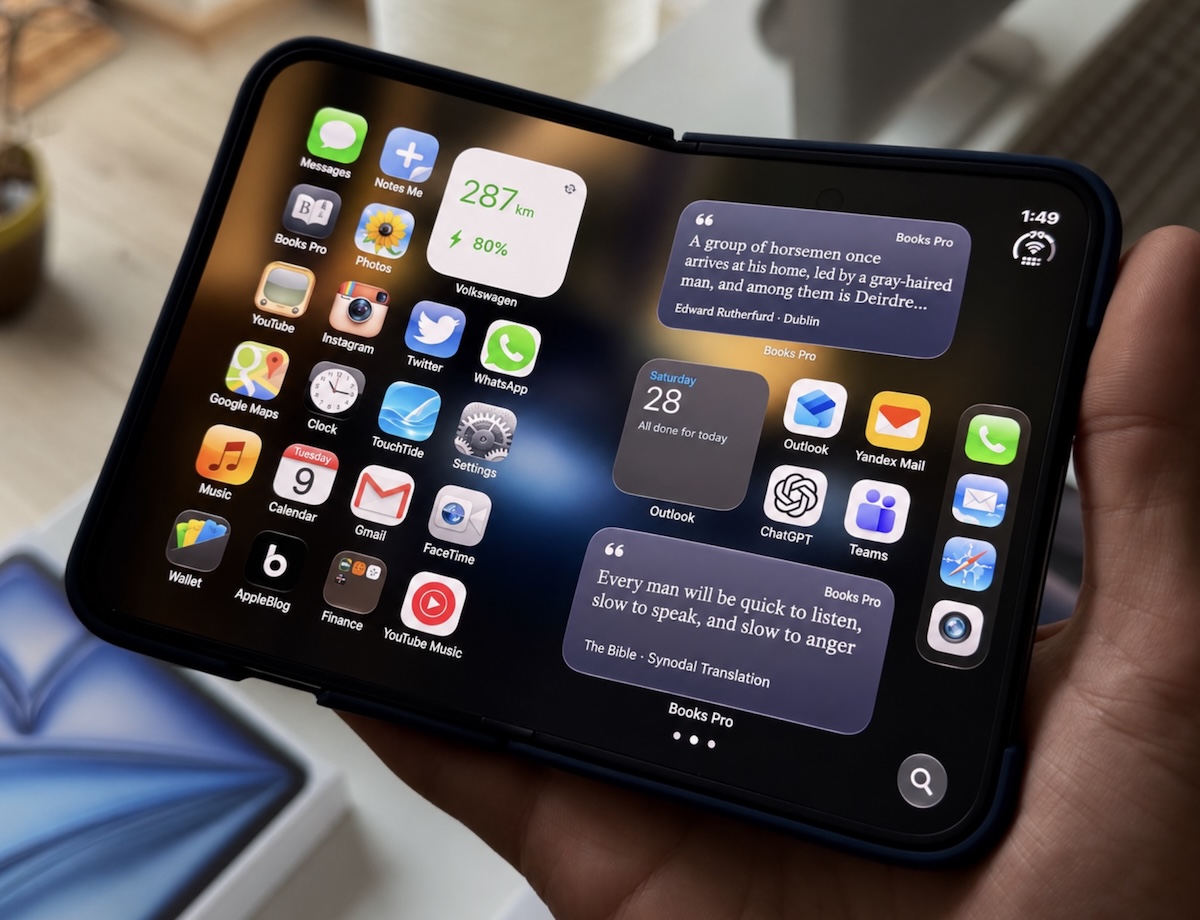
The result? Everything works beautifully. And visually, it looks absolutely fantastic.
If you recently purchased an iPhone Duo and want to bring back a little of Apple’s original design magic, here’s how to do it.
I Installed Classic iOS 6 Icons on My iPhone Duo
A few months ago, I published a guide explaining how to install classic iOS 6 icons on an iPhone running iOS 27. At the time, the focus was on bringing Apple’s original skeuomorphic design to modern iPhones.
Now that I have my own iPhone Duo, I wanted to see whether the same configuration profile would work on Apple’s new foldable iPhone.
I’m happy to confirm that it does.
I used exactly the same profile available in my original article. I didn’t need to create a new configuration file, redesign the icons, or prepare a special edition of the icon pack for the iPhone Duo.
The installation was successful, and the icons work as expected.
But what impressed me even more was how good they look.
There is something remarkably satisfying about opening a modern foldable iPhone and discovering a Home Screen inspired by the early years of Apple’s mobile operating system.
The hardware feels futuristic. The icons feel familiar. And somehow, the combination works.
This is not a design concept or a prediction of what an alternative version of iOS could look like. This is something you can install and enjoy on your own iPhone Duo right now.
Why iOS 6 Icons Still Look So Beautiful in 2026
When Apple introduced iOS 7 in 2013, the visual identity of the iPhone changed almost overnight.
Realistic materials disappeared. Glossy reflections became less prominent. Detailed illustrations were replaced by simpler shapes and cleaner graphics.
It was the beginning of a new chapter in Apple’s design history.
And although modern iOS has become considerably more sophisticated over the years, I still believe that some of Apple’s most beautiful application icons were created during the iOS 6 era.
Those icons had character.
The Camera icon resembled a real camera. The Notes icon looked like something you might find on your desk. The original Music icon was instantly recognizable. Even the Settings icon felt like a miniature mechanical object.
Each application had its own visual personality.
There was no need to make every icon look like a variation of the same design system. They were allowed to be different, colorful, detailed, and occasionally a little extravagant.
Perhaps that’s precisely what makes them so refreshing today.
After more than a decade of increasingly minimal interfaces, the classic Apple icons remind us that good design can also be expressive, playful, and emotionally engaging.
Technology moves forward. That doesn’t necessarily mean every beautiful thing from the past needs to be left behind.
iPhone Duo and iOS 6: Fourteen Years of Apple Design in One Device
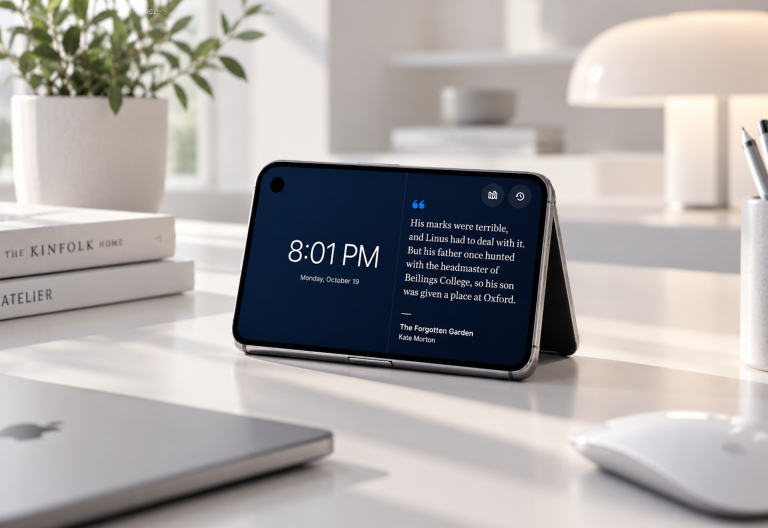
The iPhone Duo is a particularly interesting device for this kind of customization.
Its foldable design represents a new direction for the iPhone, while the classic iOS 6 icons represent an entirely different period in Apple’s history.
Putting them together feels almost like bringing two generations of Apple designers into the same room.
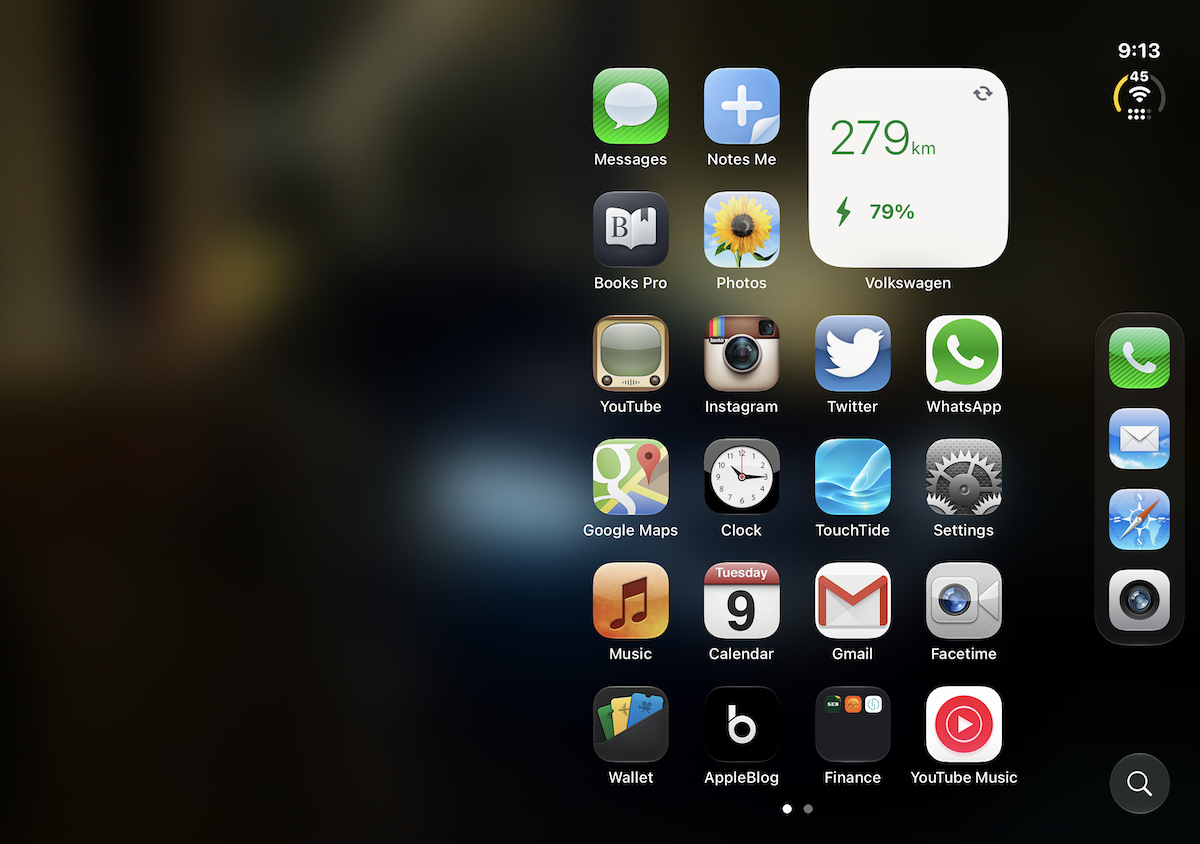
On the smaller outer display, the classic icons recall the compact Home Screens of earlier iPhones.
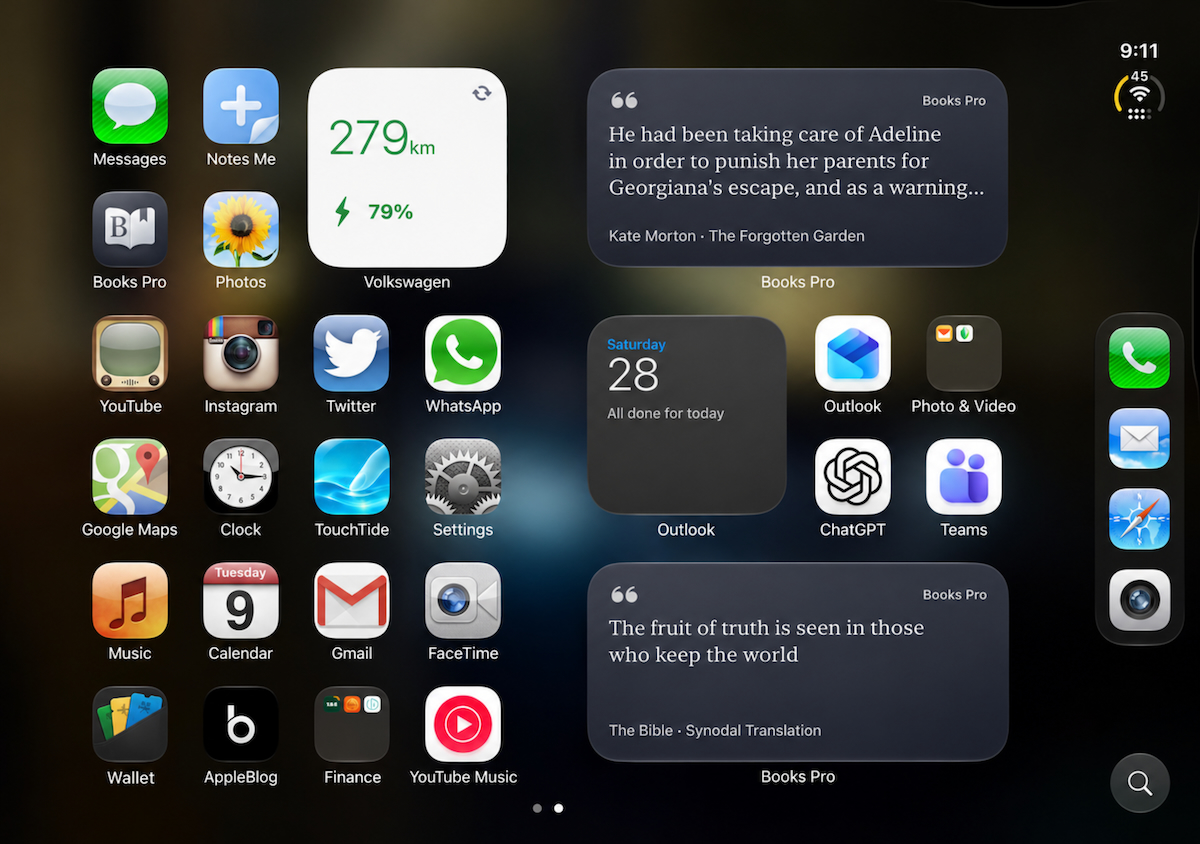
On the larger inner display, those same icons become part of a much more spacious visual experience. Their textures, colors, shadows, and illustrations are particularly interesting to look at on a modern screen.
It is a visual combination that Apple itself would probably never release.
But that is one of the things I enjoy about Home Screen customization. Your iPhone doesn’t have to look exactly like the device Apple shows in its advertisements.
It can reflect your own preferences, your memories, and your appreciation for different periods of Apple’s design history.
And if that means putting a fourteen-year-old design on a brand-new iPhone, I’m perfectly happy with that.
Download iOS 6 Icons for iPhone Duo Running iOS 27
You can download the same configuration profile that I successfully installed on my own iPhone Duo.
There is no additional iPhone Duo edition to download. The original iOS 6 icon pack for iOS 27 already works on the device.
Classic iOS 6 Icon Pack
iPhone Duo · iOS 27
Personally tested. Beautifully nostalgic.
Download iOS 6 Icons
Configuration Profile (.mobileconfig)
No jailbreak required
For the simplest installation experience, open this article directly in Safari on your iPhone Duo.
How to Install iOS 6 Icons on iPhone Duo
One of the things I dislike about many traditional iPhone icon packs is the amount of time required to install them.
Downloading individual images, creating shortcuts, selecting icons, naming applications, and repeating the same process dozens of times is hardly my idea of an enjoyable afternoon.
The configuration profile makes the process considerably easier. Instead of manually creating every icon, you can add the collection together.
Step 1. Download the iOS 6 Icon Profile
Open this page in Safari on your iPhone Duo and tap the Download iOS 6 Icons button.
When iOS asks whether you want to allow the configuration profile to be downloaded, select Allow.
Step 2. Open Settings
After downloading the profile, open the Settings application on your iPhone Duo.
Look for the Profile Downloaded option near the top of the Settings screen.
If you don’t see it, navigate to:
Settings → General → VPN & Device Management
Select the downloaded configuration profile.
Step 3. Install the Configuration Profile
Review the information displayed on your screen and tap Install.
Enter your iPhone passcode if requested and follow the remaining confirmation prompts.
As with any configuration profile, always review its contents and only install profiles from sources you trust.
Step 4. Enjoy Your Classic Home Screen
Once the installation is complete, return to the Home Screen.
The newly installed classic icons should now be available on your iPhone Duo.
You can move them around, organize them into your preferred layout, and select a wallpaper that complements the classic design.
That’s all there is to it. No jailbreak, no complicated system modifications, and no need to manually create dozens of individual shortcuts.
Which Classic iOS 6 Icons Are Included?
The collection features many of Apple’s most recognizable application icons, together with retro-inspired artwork for selected applications that belong to later generations of iOS.
Everyday Apps
Phone, Messages, Safari, Mail, Contacts and FaceTime.
Media & Creativity
Camera, Photos, Music, Notes and App Store.
Apple Utilities
Settings, Maps, Weather, Clock, Calendar, Calculator and Files.
Not every application available on iOS 27 existed in 2012. Some of the icons are therefore modern interpretations of Apple’s classic visual language rather than original iOS 6 artwork.
I actually find this particularly interesting.
Imagine what today’s iPhone applications might have looked like if Apple had continued developing its original skeuomorphic design instead of moving toward flat interfaces in 2013.
These icons offer a small glimpse into that alternative history.
How iOS 6 Icons Look on the iPhone Duo Outer Display
One of the reasons I enjoy the iPhone Duo is that the device offers two very different ways of interacting with iOS.
When folded, it feels like a compact smartphone. When unfolded, the larger inner display provides a completely different experience.
The outer display is particularly interesting when combined with classic iOS icons.
There is something about the smaller screen format and traditional application grid that brings back memories of earlier iPhone generations.
Of course, this is not an iPhone 4S or an iPhone 5. The hardware, display technology, and operating system belong to a very different generation.
But visually, the familiar icons create a pleasant connection to those devices.
It is a reminder of a time when simply unlocking an iPhone and looking at its Home Screen felt like discovering something special.
Classic iOS 6 Icons on the Large Inner Display
Unfolding the iPhone Duo introduces an entirely new perspective.
Instead of experiencing those classic icons within the confines of a traditional smartphone display, you have a much larger canvas on which to appreciate them.
The detailed artwork benefits from modern display technology. Small highlights, colorful illustrations, and carefully designed shadows become more noticeable.
I particularly like the idea of combining a spacious modern Home Screen with icons that were originally designed for much smaller devices.
It is not an attempt to recreate the past exactly as it was.
Rather, it is a way of introducing something familiar into an entirely new visual environment.
And for me, that is what makes the iPhone Duo such an interesting device for experimenting with Apple’s classic design language.
iOS 6 Icons vs. iOS 27 Liquid Glass Design
Interestingly, Apple’s modern Liquid Glass design and the classic iOS 6 interface are not complete opposites.
Both approaches rely on visual depth, light, reflections, and the suggestion of physical materials.
The difference is how those elements are used.
In iOS 6, the individual application icon was often the centerpiece. In modern iOS, visual effects contribute more heavily to the appearance of the interface as a whole.
| Design Element |
iOS 6 |
iOS 27 |
| Visual philosophy |
Skeuomorphism |
Liquid Glass |
| Icon appearance |
Detailed and illustrative |
Modern and adaptive |
| Materials |
Paper, metal, leather and gloss |
Glass and transparency |
| Colors |
Rich and distinctive |
Adaptive and customizable |
| App identity |
Individual visual personality |
Consistent design language |
| Overall feeling |
Warm and expressive |
Clean and contemporary |
I appreciate what Apple is doing with modern iOS. The interface is sophisticated, the animations are beautiful, and there is considerably more flexibility than we had during the early years of the iPhone.
But when it comes to the design of individual application icons, I still have a particular appreciation for the classic Apple aesthetic.
Fortunately, installing the classic icon pack doesn’t mean giving up the modern iOS experience.
You can enjoy both design philosophies on the same device.
The Best Wallpapers for iOS 6 Icons on iPhone Duo
Once you’ve installed the classic icons, the next step is choosing a suitable wallpaper.
A well-chosen background can completely transform the visual appearance of your Home Screen.
Because the iOS 6 icons already feature detailed illustrations, rich colors, reflections, and shadows, I prefer to combine them with relatively simple wallpapers.
Here are some styles I would recommend experimenting with:
- Classic iOS water droplet wallpapers.
- Pure black OLED wallpapers.
- Dark blue and graphite gradients.
- Traditional linen-inspired textures.
- Minimal natural landscapes.
- Classic iPhone wallpapers from the early Apple era.
A dark background is particularly effective if you want the colorful icons to stand out.
Personally, I prefer a Home Screen where the artwork of the individual applications remains the main visual element.
There is little reason to compete with those beautifully detailed icons by adding an excessively complicated background.
You can also experiment with modern iOS 27 wallpapers. Combining contemporary Apple artwork with vintage icons creates a different, but equally interesting, visual identity.
Do iOS 6 Icons Affect iPhone Duo Performance or Battery Life?
It’s important to understand that this icon pack is not a replacement operating system.
Your iPhone Duo continues running iOS 27. The original applications remain installed, and the configuration profile does not replace the underlying iOS system files.
The customization takes place at the Home Screen level through additional application launchers.
On my own iPhone Duo, the installed icons work well, and I am very happy with the result.
There is no reason to downgrade your iPhone, jailbreak it, or give up the functionality of modern applications simply to enjoy a different Home Screen appearance.
However, the classic icons are not native replacements for Apple’s built-in application icons. Features such as notification badges, dynamic icon artwork, and individual app-launch behavior may differ from the original icons.
I have not conducted a separate battery life benchmark, so I wouldn’t make a specific claim about battery consumption. This is primarily a visual customization, not a performance modification.
No Jailbreak
Enjoy the classic appearance without modifying iOS system files.
Modern iOS 27
Keep the modern operating system and your existing applications.
Fully Reversible
Remove the installed profile whenever you want to return to the original appearance.
How to Hide the Original iOS 27 Icons
After installing the classic icon collection, you may notice that the original application icons are still available on your Home Screen.
This is normal. The configuration profile adds the classic launchers rather than deleting or replacing your existing applications.
If you want a more consistent retro appearance, you can move selected original application icons to the App Library.
- Touch and hold the original application icon.
- Select Remove App.
- Choose Remove from Home Screen if available.
- Leave the classic icon on your Home Screen.
Make sure you don’t select Delete App unless you actually want to uninstall the application.
You can return the original application icon to your Home Screen at any time through the App Library.
How to Remove Classic iOS 6 Icons from iPhone Duo
One of the advantages of installing the icon collection through a configuration profile is that the customization is reversible.
If you decide to return to Apple’s original iOS 27 appearance, follow these steps:
- Open Settings on your iPhone Duo.
- Select General.
- Open VPN & Device Management.
- Select the installed iOS 6 icon profile.
- Tap Remove Profile.
- Enter your passcode if requested.
- Confirm the removal.
The custom icons added through the profile should be removed from your device.
If you previously moved your original application icons to the App Library, you can simply add them back to the Home Screen.
There is no need to restore the iPhone, erase your personal data, or reinstall iOS 27.
Why Doesn’t Apple Offer an Official Classic Icon Mode?
After installing the iOS 6 icons on my iPhone Duo, I found myself returning to a question I’ve had for quite some time.
Why doesn’t Apple offer something like this officially?
Over the years, Apple has introduced more ways to personalize the iPhone. We can change wallpapers, rearrange applications, customize the Lock Screen, adjust icon appearances, and create different visual environments.
Why not introduce an optional Classic icon collection?
Apple has an extraordinary archive of interface artwork. Some of those designs remain instantly recognizable more than a decade after they disappeared from the operating system.
Imagine opening the iOS appearance settings and discovering an option that allows you to choose between contemporary icons and officially restored classic Apple artwork.
Not an entire retro operating system. Not a return to outdated functionality. Just another visual choice for people who appreciate Apple’s design history.
I would certainly use it.
And judging by the continued interest in classic iPhone icons, I suspect I wouldn’t be the only one.
Until then, the configuration profile offers a lovely alternative.
My Final Thoughts: The Newest iPhone with One of Apple’s Oldest Designs
I have no desire to replace my iPhone Duo with an iPhone from 2012.
I enjoy modern Apple hardware, the versatility of a foldable display, the capabilities of iOS 27, and everything that technological progress has brought to the smartphone over the years.
But I also enjoy being reminded of a different era of Apple.
An era when opening a new application felt like entering its own carefully crafted visual world. When application icons resembled miniature illustrations rather than simply identifying software.
There was something wonderfully personal about that design philosophy.
Installing the classic iOS 6 icons on my iPhone Duo has allowed me to bring a little of that feeling back.
I’ve personally tested the original configuration profile on my own iPhone Duo. The installation works, the icons look fantastic, and I genuinely enjoy seeing them on this new device.
Perhaps the most interesting thing about this experience is that it doesn’t feel like a step backward.
It feels like taking something beautiful from Apple’s past and giving it a new home.
Fourteen years later, these icons still make me smile.
Download Classic iOS 6 Icons for iPhone Duo
If you own an iPhone Duo running iOS 27 and want to experience Apple’s classic Home Screen design, you can download the same icon pack I installed on my own device.
2012 Design. 2026 Technology.
Bring the legendary iOS 6 icons to your new iPhone Duo.
Download Classic iOS 6 Icons
Personally tested on iPhone Duo · iOS 27
You can also explore my original installation guide for other iPhone models:
How to Install Classic iOS 6 Icons on iOS 27 in One Click
Let’s Talk About Apple Design
Which generation of Apple’s icon design do you prefer?
Do you still love the detailed, colorful icons from iOS 6, or do you prefer the modern Liquid Glass appearance of iOS 27?
And if Apple introduced an official Classic appearance mode for the iPhone Duo, would you use it?
I’d love to hear your thoughts in the comments. Especially if you’ve already installed the classic icons on your own iPhone Duo.
Frequently Asked Questions
Can I install classic iOS 6 icons on iPhone Duo?
Yes. I personally downloaded and installed the original iOS 6 icon configuration profile on my own iPhone Duo running iOS 27. The installation was successful, and the icons look and work beautifully.
Do iOS 6 icons work on iPhone Duo running iOS 27?
Yes. I have personally tested the profile on my iPhone Duo running iOS 27.
Where can I download iOS 6 icons for iPhone Duo?
You can download the original configuration profile directly from AppleBlog using the download buttons in this article.
Do I need a special iPhone Duo icon pack?
No. I used the same configuration profile previously published for iOS 27. A separate iPhone Duo version was not necessary.
Do I need to jailbreak my iPhone Duo?
No. The classic icons are installed using a configuration profile without jailbreaking the device or replacing iOS system files.
Can I install all the iOS 6 icons at once?
Yes. The configuration profile adds the included icon collection together, avoiding the need to manually create an individual shortcut for every application.
Will installing iOS 6 icons delete my original apps?
No. Your existing applications remain installed. The profile adds additional Home Screen launchers.
Will classic icons change the interface inside my apps?
No. The icon collection changes the appearance of the Home Screen. Your applications retain their modern interfaces and functionality.
Do classic iOS 6 icons support notification badges?
The custom launchers are not native application icon replacements. Notification badges and dynamic icon features may therefore differ from the original iOS icons.
How long does it take to install the iOS 6 icon pack?
The installation is a short process involving downloading the configuration profile and confirming its installation in Settings.
Can I remove the iOS 6 icons from my iPhone Duo?
Yes. Navigate to Settings, General, VPN & Device Management, select the installed icon profile, and remove it.
Can I install the actual iOS 6 operating system on iPhone Duo?
No. This icon collection recreates aspects of Apple’s classic Home Screen design while your iPhone Duo continues running iOS 27.
Is this an official Apple icon pack?
No. It is an independent Home Screen customization inspired by Apple’s original skeuomorphic design language.


0 Comments
Share your thoughts with other AppleBlog readers.