Apple wants you to do everything differently: you listened to music in Apple Music, you bought movies on iTunes, and so on. But what if you want to download music from the net or watch for free on iPhone TV shows and videos? There are several ways to do this, and below we will tell about them.
How to download music and video on iPhone XS, XR, X:
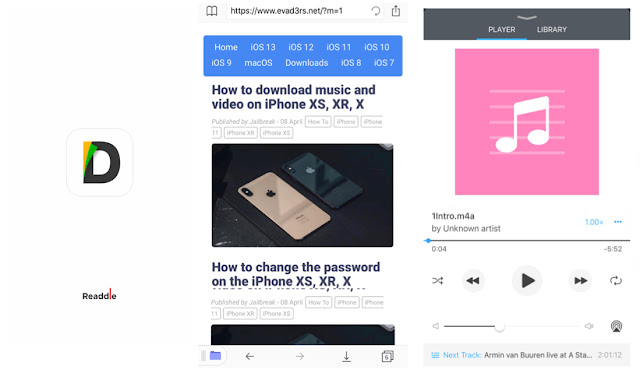
The best way to download music and videos from the network to your iPhone or iPad is through the Documents by Readdle. This is a universal application with a built-in browser, loader, file manager and media player.
If you want to forget about the standard Music and Video applications, this application will be an excellent replacement for them.
Just go to the site with the music through the Documents application and click the download button. You can also choose where the files are saved. After downloading, select the file to play it. The Documents application plays almost all audio and video formats. If you want, you can send the file to other applications like VLC.
The application also allows you to conveniently transfer files from your PC or Mac to your device. To do this, devices simply need to be connected to the same Wi-Fi network. Then you go to docstransfer.com and scan the Q-code, after which you can select files that will be transferred to your iPhone or iPad.
No need to run iTunes and connect your smartphone to your computer!!!


0 Comments
Share your thoughts with other AppleBlog readers.